Units of Measure
Set up the units you buy, stock and cook in, such as kilogram, gram, liter, piece and box, and tell the system how to convert between them.
You do this in the Web admin. There are two screens in the Inventory menu:
- Inventory > Unit Of Measures: the list of units. The screen is titled Units of Measure.
- Inventory > Unit Of Measure Conversions: how one unit converts to another. The screen is titled Unit Conversions.
How units are used
There are three places where units are set, and they work together:
| Where | What it holds | Example |
|---|---|---|
| Units of Measure | The units that exist in your account. Every other screen picks from this list. | Kilogram, Gram, Liter, Piece, Box |
| Unit Conversions | General conversions that are true for every product. | 1 KG = 1000 G |
| Units on a product | The product's base unit (the unit its stock is counted in) and its packaging units, each with its own conversion. | For one product, 1 Box = 20 Piece |
Units on a product are covered in Product Units and Packaging. This page covers the first two.
Units
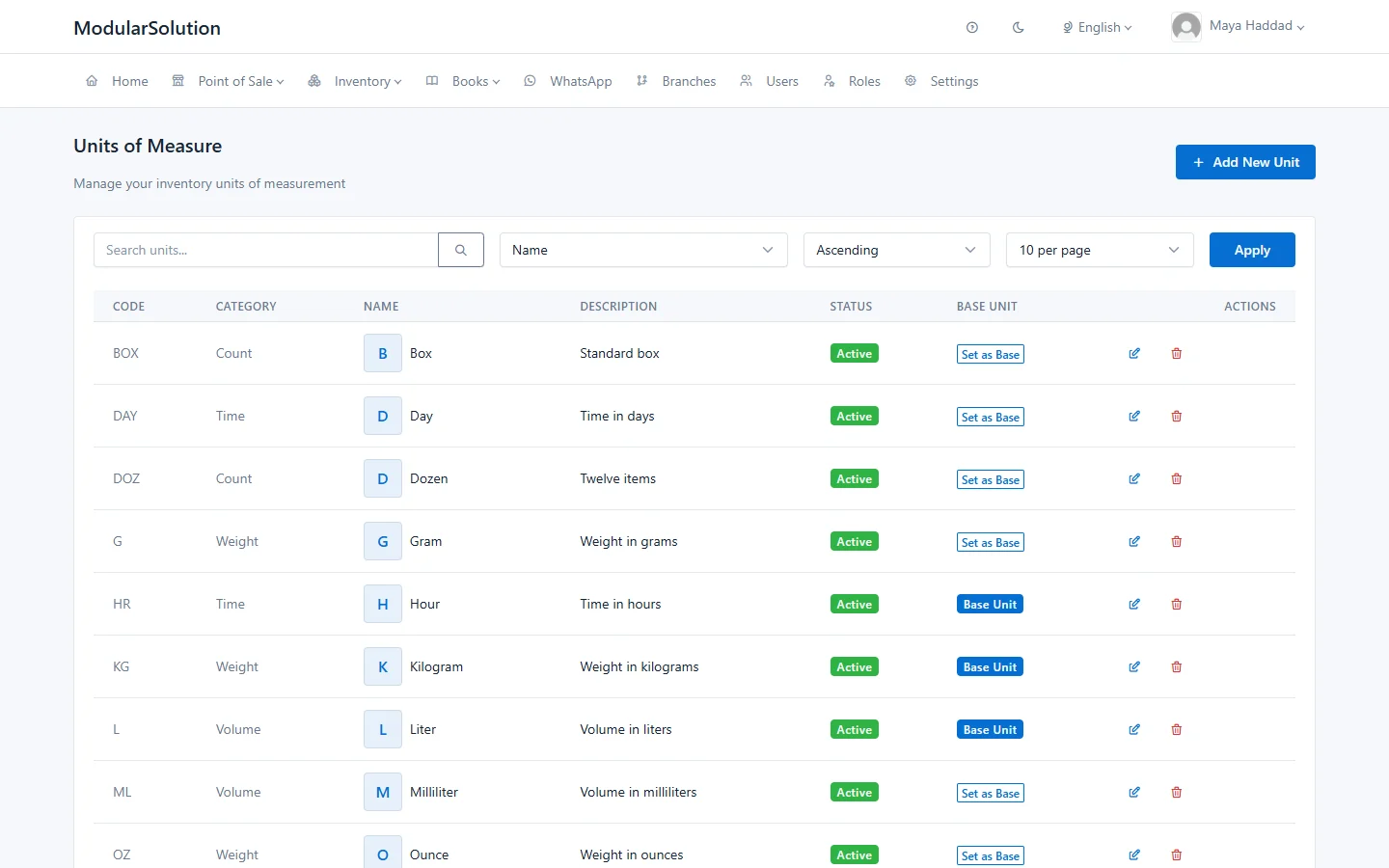
The list shows each unit's CODE, CATEGORY, NAME, DESCRIPTION, STATUS and whether it is a BASE UNIT. Check the list before adding a unit; the common ones are normally already there.
Add a unit
-
Open the formGo to Inventory > Unit Of Measures and click Add New Unit.
-
Choose the categoryIn Category, pick what the unit measures, for example Weight, Volume, Count or Time. Conversions only work between units in the same category, so choose carefully.
-
Enter the code and nameType a short Unit Code that is not used by another unit (for example KG) and the full Name (for example Kilogram). Description is optional.
-
Click CreateMake sure Active is ticked and Base Unit is not. The unit can now be chosen on products, recipes and receipts.
Edit or delete a unit
Use the pencil button on a row to edit a unit, and the bin button to delete it. A unit marked Base Unit cannot be deleted.
Base Unit on this screen
On the Units of Measure list, Base Unit marks the reference unit of a category, for example Kilogram for weight and Liter for volume. This is not the same thing as a product's base unit, which you choose on each product.
The Set as Base button makes a different unit the base unit, and the confirmation warns that this changes all conversions. The base units you start with are already right for normal use, so leave them as they are.
Unit conversions
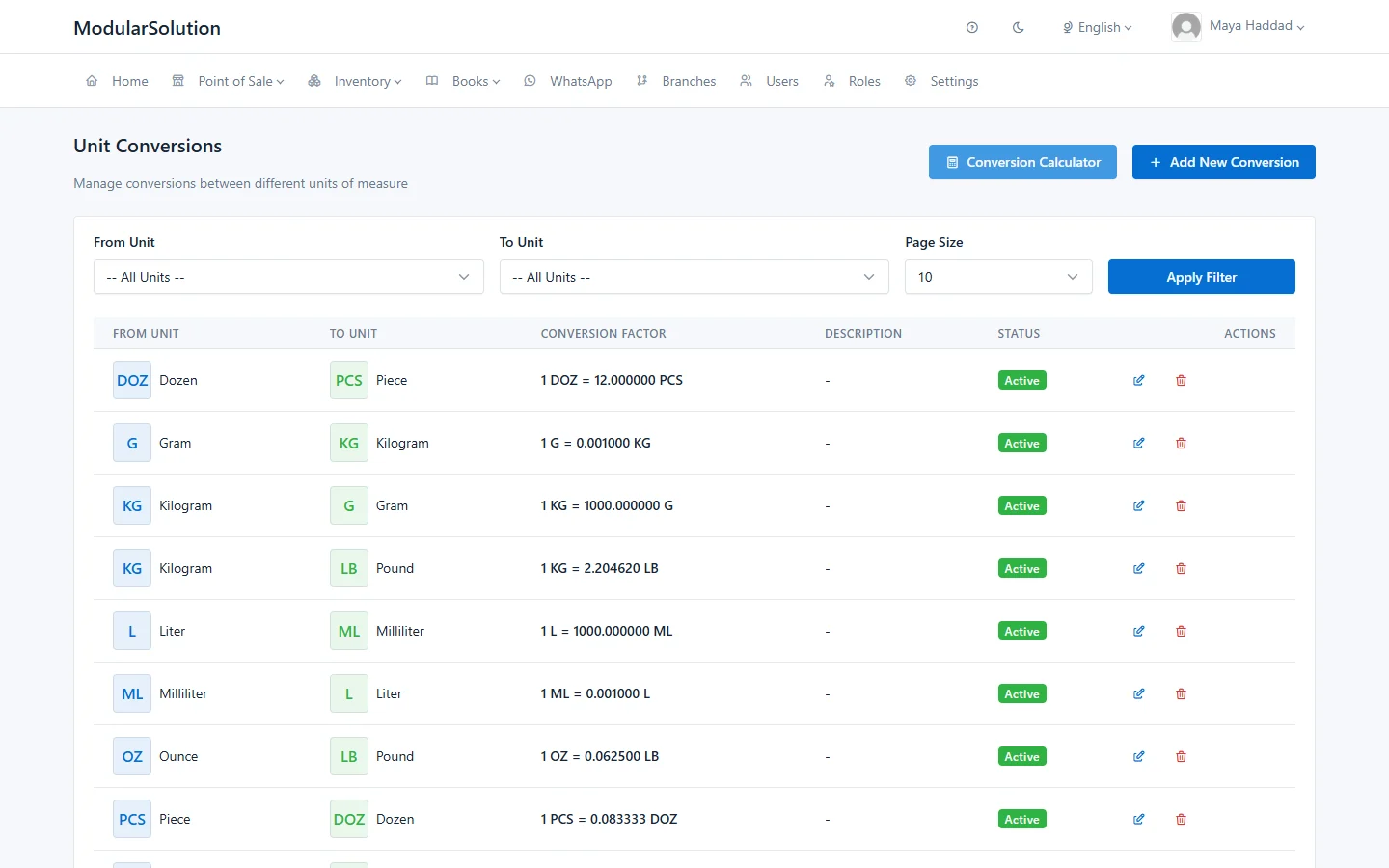
A conversion says how many of one unit make one of another. The CONVERSION FACTOR column shows it in full, for example 1 KG = 1000.000000 G.
Add a conversion
-
Open the formGo to Inventory > Unit Of Measure Conversions and click Add New Conversion.
-
Choose the two unitsPick the From Unit and the To Unit. They must be different, and they should be in the same category.
-
Enter the conversion factorIn Conversion Factor, type how many To Units equal one From Unit. It must be more than zero. Check the Conversion Preview at the top: it should read correctly as a sentence, for example "1 KG = 1000 G".
-
Click CreateThe conversion appears in the list.
You do not need to enter both directions for stock and recipes. A conversion from Kilogram to Gram is also used to convert Gram to Kilogram, and conversions are chained when needed (for example Gram to Kilogram to another weight unit).
Edit or delete a conversion
Use the pencil button on a row to change the factor, and the bin button to delete the conversion. Only conversions with the status Active are used.
Check a conversion
On the Unit Conversions screen, click Conversion Calculator. Type a Value, choose the From Unit and To Unit, and click Convert. If no conversion links the two units, the calculator shows an error instead of a result.
Which conversion is used
When a quantity has to be turned into a product's base unit, the system looks in this order:
- The unit set on the product itself, with the product's own conversion. See Product Units and Packaging.
- The general conversions on the Unit Conversions screen, within the same category.
| Situation | What is used |
|---|---|
| A recipe uses an ingredient in a different unit from the product's base unit (grams of a product stocked in kilograms) | The product's own unit first, then the general conversions. This applies to the recipe cost and to the stock taken when the dish is sold. If no conversion is found, that ingredient cannot be costed and is not taken from stock. |
| A GRN or direct receipt is entered in a purchase unit (boxes of a product stocked in pieces) | Only the unit set on the product. The general conversions are not used here. |
If you receive a product in a unit that is not set up on that product, the quantity is added to stock as it is typed, with no conversion. Receiving 2 in Box would add 2 to stock, not 2 boxes' worth. Add the purchase unit to the product first, with its conversion to the base unit.
Which screen to use
- A fact that is true for every product, such as 1 kilogram = 1000 grams: add it once under Unit Conversions.
- A fact that depends on the product, such as how many pieces are in a box or how much a bag weighs: add it as a unit on that product. See Product Units and Packaging.
Troubleshooting
"From Unit and To Unit cannot be the same."
Choose two different units for the conversion.
"Conversion between these units already exists"
There is already a row for this From Unit and To Unit. Find it in the list with the From Unit and To Unit filters and edit it instead.
"Conversion factor must be greater than zero"
Type a factor above zero. For a small unit into a large one, use a decimal, for example 0.001 for Gram to Kilogram.
"Cannot delete the base unit of measure"
The unit is marked Base Unit and cannot be deleted.
A recipe ingredient has no cost, or is not taken from stock when sold
The ingredient's unit cannot be converted to the product's base unit. Check that both units are in the same category and that a conversion links them, or add the ingredient's unit to the product.