Recipes and Food Costing
Tell the system what goes into each menu item, so that selling it deducts stock and you can see what it costs to make.
What a recipe does
A recipe links one menu item to the inventory products it uses and how much of each. Once the recipe is Active:
- Each completed sale of the menu item deducts the ingredients from stock.
- The recipe shows a total cost, a cost per portion, and the food cost percentage and margin against the menu price.
A menu item without an active recipe can still be sold. Nothing is deducted from stock for it and it has no food cost.
Recipes are managed in the Web admin under Point of Sale > Recipes. You need permission to view recipes to see this menu entry. The products you use as ingredients must already exist in Inventory.
Recipe types
| Type | Use it for |
|---|---|
| Recipe | A menu item you sell. It must be linked to a menu item, and each menu item can have one recipe. |
| Sub-Recipe | A formula you reuse inside other recipes, such as a sauce. It is never held in stock. When a dish that uses it is sold, the sub-recipe's own ingredients are deducted. |
| Batch Recipe | Something cooked ahead and held in stock. You link it to the stocked product it produces. See Production Orders. |
Recipe statuses
| Status | Meaning |
|---|---|
| Draft | The starting status of a new recipe. Sales do not deduct stock yet. |
| Active | The recipe is live. Sales of the linked menu item deduct stock, and the menu item shows the recipe's food cost. |
| Inactive | Switched off. Sales do not deduct stock. |
| Archived | Kept for reference. Sales do not deduct stock. |
Saving a recipe does not make it live. Stock is only deducted after you click Activate, or set Status to Active on the form.
Create a recipe
-
Open RecipesIn the Web admin, go to Point of Sale > Recipes. The Recipe Management page opens.
-
Click New RecipeThe Create Recipe page opens with Recipe Details at the top and Ingredients below.
-
Fill in Recipe Details
- Type: choose Recipe - for a menu item you sell for a dish on the menu.
- Status: starts as Draft.
- Recipe Name: required.
- Code: a short code for the recipe. Leave it empty to have one generated.
- Menu Item: search for the menu item this recipe is for. Required when the type is Recipe.
- Yield and Unit: how much one run of the recipe makes, for example 1 Piece for a single burger or 5 Litre for a pot of sauce. The yield must be greater than 0.
The Time & Storage, Description & Instructions and Kitchen Station & Photo sections are optional. Click a heading to open it.
-
Add the ingredientsType in the Search ingredients box and click a result to add it. Results marked Raw are inventory products. Results marked Sub-Recipe are other recipes. A recipe needs at least one ingredient.
-
Set the quantity and unit of each ingredientFill in the row for each ingredient. The columns are explained in the next section.
-
Click Save RecipeThe recipe details page opens and the cost is calculated.
-
Click ActivateThe button is at the top of the recipe details page. The message Recipe activated - it is now live on POS. confirms it. From now on, completed sales of the menu item deduct stock.
-
Click RecalculateThis copies the recipe's cost to the menu item, so the menu item shows its food cost and margin.
You can also start a recipe from a menu item: open the menu item for editing and click Add Recipe in the Recipe & Food Costing section.
Ingredients and units
| Column | What to enter |
|---|---|
| Mode | Exact deducts from the one product variant you picked. FIFO deducts from any variant of the product, oldest stock first. |
| Qty | The amount used for one run of the recipe (one yield). |
| Unit | The unit the quantity is written in, for example grams. It does not have to be the unit the product is stocked in, as long as a conversion between the two exists. See Units of Measure. |
| Waste% | The share lost in preparation, such as trimmings. The quantity is increased to cover it: 250 with 5% waste becomes 263.16. The recipe details page shows this as Effective. |
| Notes | Optional preparation notes, such as "diced". |
| Cost | Worked out for you from the ingredient's unit cost. |
The Channels and Opt columns are saved with the recipe but do not change how stock is deducted or how the cost is calculated. Leave them as they are.
If you cook something ahead with a production order, its raw materials are deducted when you record production. Add the produced product to the dish's recipe as an ingredient. If you add the batch recipe itself as a sub-recipe, its raw materials are deducted again each time the dish is sold. The Web admin warns you about this when you add such a sub-recipe.
Cost and margin figures
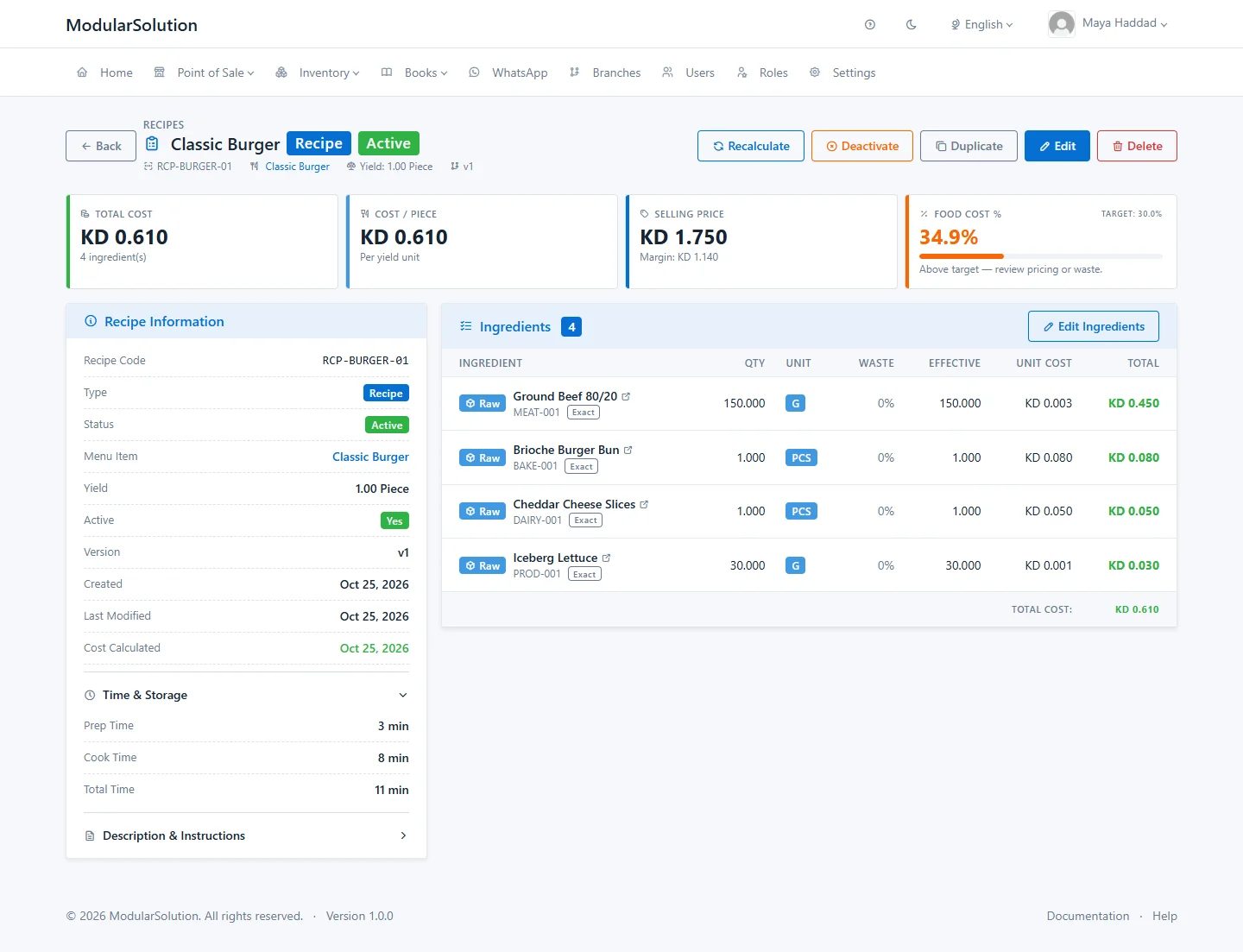
Open a recipe from the list with View to see its figures.
| Figure | Meaning |
|---|---|
| Total Cost | The cost of all ingredients for one run of the recipe. |
| Cost / (yield unit) | Total cost divided by the yield. For a recipe that yields 1 piece this equals the total cost. |
| Selling Price | The price of the linked menu item, with the Margin (selling price minus cost per yield unit) underneath. |
| Food Cost % | Cost per yield unit divided by the selling price, times 100. It is compared with a target of 30%. |
The Food Cost % card changes colour and message with the result:
| Food cost | Message |
|---|---|
| 30% or below | On target — healthy margin. |
| Above 30%, up to 36% | Above target — review pricing or waste. |
| Above 36% | Significantly above target — recipe is unprofitable at current price. |
The Ingredients table lists each line with its quantity, unit, waste, effective quantity, unit cost and total. The badge in front of the name tells you what kind of ingredient it is:
- Raw: bought in and taken from stock.
- Prep: made in-house with a production order and taken from stock.
- Sub: a sub-recipe. It is not stocked. Its own ingredients are deducted when the dish is sold.
Food cost on the menu item
Each time the cost of an Active recipe is calculated, its cost per portion is copied to the linked menu item. Activating a recipe does not calculate the cost by itself, so click Recalculate once after you activate a new recipe. To see the figures, go to Point of Sale > Menu Items, click the View Details (eye) icon, and look at the Food Cost & Profitability card. It shows Food Cost, Food Cost %, Gross Profit and Gross Margin %, and when the cost was last calculated.
Where ingredient costs come from
- A product you buy is costed at its latest purchase price. If it has not been bought yet, the price agreed with its supplier is used.
- A product you make in-house is costed from the recipe that produces it.
- A sub-recipe is costed from its own ingredients.
If an ingredient has no cost, the recipe cannot show a food cost percentage. The card reads, for example, 1 ingredient(s) have no cost — food cost cannot be calculated. Use Recalculate to see why.
Recalculate the cost
The cost is calculated when you create a recipe and each time you save changes to it. It does not follow purchase prices by itself unless you turn that on.
Recalculate one recipe
-
Find the recipeGo to Point of Sale > Recipes.
-
Click Recalc on its rowOr open the recipe and click Recalculate at the top of the details page.
-
Read the resultA message starting Cost recalculated: shows the new cost per portion. If any ingredient could not be costed, a warning names it, for example No cost available for followed by the ingredient.
You can also click Recalculate on the Food Cost & Profitability card of a menu item's details page.
Recalculate automatically after purchases
In the Web admin, go to Settings, open the Inventory tab and, under Costing, turn on Auto-recalculate recipe costs. From then on, posting a goods received note recalculates the recipes that use the products received. See Inventory Settings.
When and how stock is deducted
Stock is deducted when a paid order is marked Completed. It is not deducted when the order is created, sent to the kitchen or paid.
For each item on the order that has not been voided:
- The system finds the menu item's Active recipe. If there is none, nothing is deducted for that item.
- Each ingredient's effective quantity is multiplied by the quantity sold.
- The result is converted to the unit the product is stocked in.
- The stock is taken from the warehouse that belongs to the order's branch. If the branch has no active warehouse, the default warehouse is used.
- A stock movement of type Sale is recorded with the order number as its reference. See Stock Movements.
A sub-recipe ingredient is broken down into its own ingredients, scaled to the amount the dish uses. After each deduction the product is checked against its low stock level. See Stock Alerts.
The order is completed even when an ingredient cannot be deducted, for example because the product has no stock record in the warehouse or its unit cannot be converted. That ingredient is skipped, so check your recipes and units if stock figures look too high.
When there is not enough stock
What happens is set in the Web admin under Settings, Inventory tab, When stock runs short during a sale:
| Option | Effect on the ingredient that is short |
|---|---|
| Deduct in full — stock goes negative (recommended) | The full quantity is deducted and the stock figure goes below zero. |
| Deduct available only — shortfall not recorded | Only what is on hand is deducted. |
| Block the deduction | Nothing is deducted for that ingredient. |
Modifiers that change the ingredients
A modifier can change what is deducted when it is picked on an order. In the Web admin, go to Point of Sale > Modifier Groups, click Manage Modifiers on the group, edit the modifier and set Recipe Behavior in the Recipe / Inventory Behavior section:
| Recipe Behavior | Effect |
|---|---|
| None | The modifier only changes the price. Stock is not affected. |
| Override | The Linked Recipe you choose replaces the menu item's recipe for that order line. Use it for size variants such as Large. |
| Delta | The rows under Ingredient Deltas are applied on top of the menu item's recipe. Each row is set to Add or Remove with a quantity and unit. Use it for extras such as Extra Cheese or removals such as No Onion. |
Creating modifiers is covered in Menu Management.
Change, copy or switch off a recipe
These buttons are at the top of the recipe details page:
- Edit: change the details or ingredients, then click Save Changes. The cost is recalculated when you save.
- Deactivate: shown on an Active recipe. Sales stop deducting stock for it. Activate switches it back on.
- Duplicate: opens Create Recipe with this recipe filled in, ready to save as a new one.
- Delete: deletes the recipe after you confirm.
Troubleshooting
| Message or problem | What to do |
|---|---|
| This menu item already has a recipe. Edit the existing recipe instead. | Each menu item can have one recipe. Find the existing recipe in the list and edit it. |
| At least one ingredient is required | Add an ingredient before saving. |
| Add at least one ingredient before activating this recipe. | Edit the recipe, add its ingredients, save, then click Activate. |
| Yield must be greater than 0 | Enter how much one run of the recipe makes. |
| Food Cost % shows a dash | The recipe is not linked to a menu item with a price, or an ingredient has no cost. Click Recalculate and read the warning. |
| Sales are not reducing stock | Check that the recipe is Active, that the order is paid and marked Completed, and that each ingredient has stock in the branch's warehouse. |