Closing the Day
Finish the day's orders, count the cash drawer, check the variance and close the business day in the POS app.
Before you close
Closing the business day is done once, at the end of trading, on the End of Day screen of the POS app. Check these first.
| Check | Why |
|---|---|
| Every order is completed or cancelled | The day cannot be closed while it has open orders. An order is open until it is completed or cancelled, so orders that are new, in progress, ready, served or out for delivery all count. |
| Deliveries are finished | Deliveries still in progress are cancelled when the day closes. |
| Cash advances are settled | On the Expenses screen, open Open Advances and tap Settle for each one. An advance left open is settled automatically as if the full amount was spent. |
| Pay In and Pay Out are recorded | Cash that moved without an entry shows as a variance. See Cash Management. |
Staff do not have to clock out first, and tables do not have to be cleared. Closing the day clocks out everyone still on shift and sets every table back to available.
Close the business day
-
Open End of DayIn the POS app, tap Cash Drawer in the menu, then End of Day at the bottom. You need permission to manage the cash drawer. The button only works while the cash drawer is open.
-
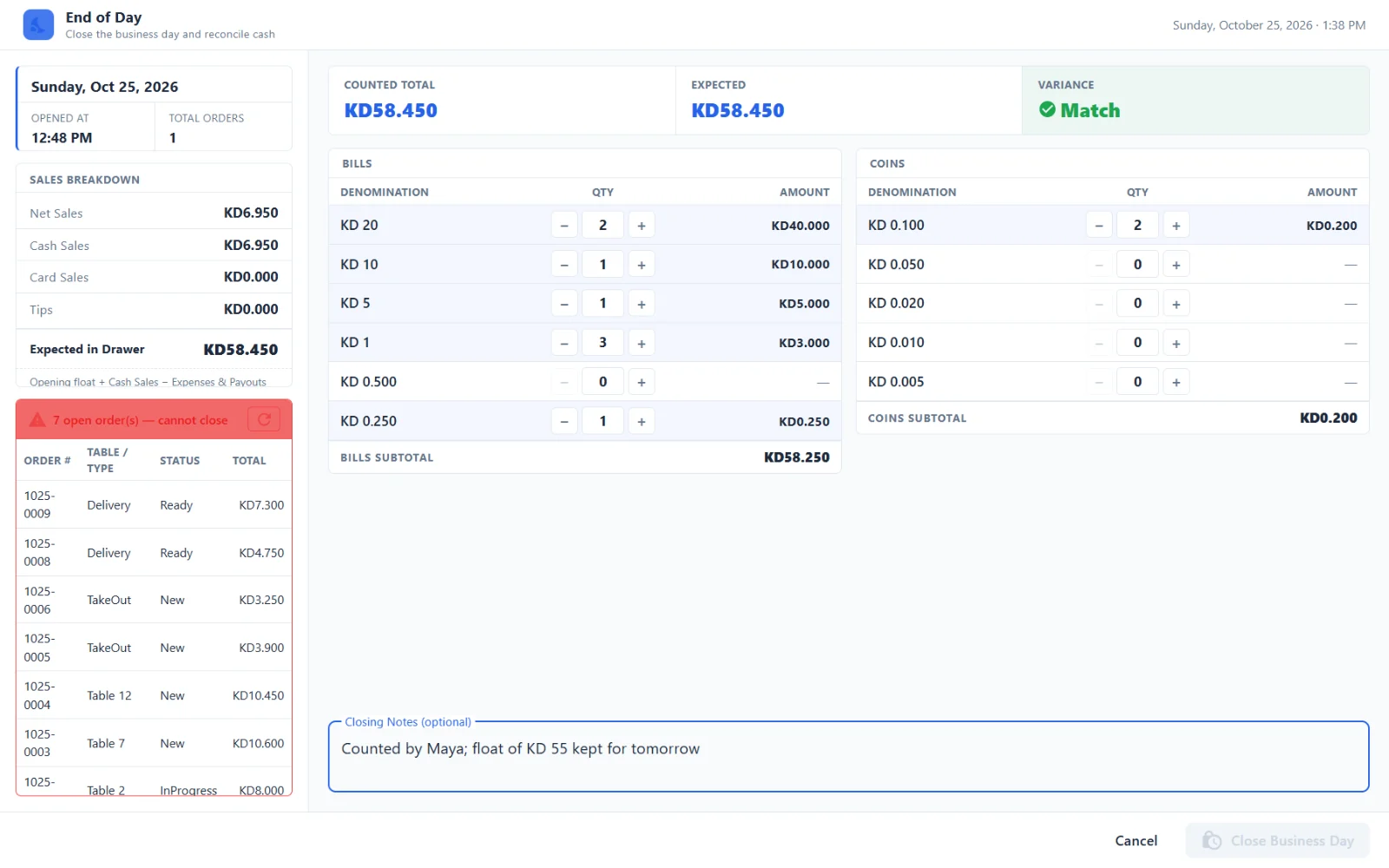
Check the day on the leftYou see the date, Opened At, Total Orders and the Sales Breakdown: Net Sales, Cash Sales, Card Sales and Tips. Expected in Drawer is the cash that should be there: opening float plus cash sales, less expenses and payouts.
-
Deal with open ordersIf a red box says open order(s) — cannot close, it lists each order with its number, table or type, status and total. Tap Cancel, then Dashboard on the POS Ready screen. Complete or cancel those orders and come back. The arrow in the red box reloads the list.
-
Count the cashCount the drawer by hand. Under Bills and Coins, enter the Qty of each denomination. Counted Total adds it up. If no denominations are set up for your currency, a keypad under Cash Count lets you type the total instead.
-
Check the varianceThe top bar compares Counted Total with Expected. See the variance table below. If it is not Match, recount before you go on.
-
Add a noteUse Closing Notes (optional) to explain a difference or say who counted.
-
Tap Close Business DayIf the variance is too large, a manager must approve first. See the next section.
-
Read the Business Day Closed screenIf your branch keeps a fixed drawer float, the screen lists Float — Leave in Drawer by denomination, the Float Total and the Amount to Deposit. Leave the float in the drawer and take the rest out. Tap Done.
After Done the app goes back to its start-of-day check. Until the date changes it shows that today's business day has already been closed, with a Logout button. A branch has one business day per date.
What closing does
- Closes the cash drawer with the amount you counted.
- Closes the business day and saves the expected cash, the counted cash and the variance.
- Clocks out everyone still on shift.
- Sets all tables back to available.
- Cancels deliveries still in progress.
- Settles cash advances that are still open.
Variance
The variance is the counted cash minus the expected cash.
| Shown as | Meaning |
|---|---|
| Match | The count equals the expected amount. |
| Short with an amount | There is less cash in the drawer than expected. |
| Over with an amount | There is more cash in the drawer than expected. |
When the variance is over the limit
Your business sets a variance limit. When the variance is larger than the limit, short or over:
- The bottom of the screen shows Manager approval required — variance exceeds threshold.
- When you tap Close Business Day, the Manager Approval Required dialog opens. A manager taps their name, types their PIN and taps Authorize.
- The day closes with the status Pending Review instead of Closed. The Business Day Closed screen says "This day requires manager review due to cash variance."
Steps 1 and 2 are skipped if your business has turned off manager approval for variance. The day is still saved as Pending Review.
A manager then approves the day in the Web admin:
- Go to Point of Sale > Business Days and click Pending Review. You need permission to approve business days. Approve Day on Point of Sale > POS Home opens the same list.
- Under Business Days Requiring Manager Approval, click Review & Approve next to the day.
- Check the expected cash, the actual cash and the variance. Add Manager Notes and enter your Manager PIN.
- Click Approve Business Day. The day's status changes to Closed.
Settings that change the count
These are in the Web admin under Settings > POS, in Cash Drawer Settings.
| Setting | Effect |
|---|---|
| Cash Variance Threshold | The variance limit described above. |
| Require Manager Approval for Variance | When on, a manager PIN is needed to close a day whose variance is over the limit. |
| Enable Blind Count | Hides the sales breakdown, the expected amount and the variance from the person counting. The screen shows "Blind count active — count the cash carefully, then submit", and after closing "A manager will review the cash reconciliation." |
| Configure Drawer Float | Sets the fixed float to leave in the drawer. With a float set, End of Day shows a Float column with the minimum count to leave for each denomination. |
Days left open from an earlier date
A business day belongs to the date it was opened on. If nobody closes it, it stays open. It is never closed automatically: closing a day needs a cash count, so a person has to do it.
A day that runs past midnight is still the current day in the early hours of the morning. After that, a day from an earlier date blocks the POS: you cannot start today and you cannot take orders until it is closed.
What you see
After you sign in to the POS app, Start of Day shows a warning instead of the cash count:
"1 business day(s) are still open from an earlier date. Close each one with a cash count before a new day can be opened."
Under the warning, each open day is listed with its day number and date, and a Close Day button.
What to do
-
Tap Close DayEnd of Day opens for that day. Check the date on the left.
-
Count the cashCount the cash drawer and enter the count, the same way as a normal close.
-
Tap Close Business DayA manager PIN is asked for if the variance is over the limit.
-
Tap DoneYou return to Start of Day. If more days are listed, close each one the same way.
-
Start todayWhen no earlier day is left, Start of Day shows the opening cash count. Count the cash and tap Start Day.
Orders still open on a day from an earlier date do not stop you closing it. They are marked completed when the day closes. Check afterwards that none of them was left unpaid.
Today's day has been open too long
A day that is still today's day but has been open longer than it should be does not block you. After you sign in, the POS Setup screen shows a warning that business days have been open longer than they should be, with the day number, the date, how many hours it has been open, and a Close Day button.
- Tap Close Day to count the cash and close it now.
- Tap Start Taking Orders to carry on and close it later.
Closing a day from the Web admin
A manager can close a business day from the browser, for example when the POS terminal is not available. You need permission to view business days. The Web admin does not close a day automatically either.
-
Open the business days listGo to Point of Sale > Business Days. The page shows the current day and Recent Business Days with each day's status: Open, Closed or Pending Review.
-
Open the dayClick View next to the day that is still Open. For today's day you can click Close Business Day at the top of the list instead.
-
Click Close Business DayThe button is on the day's details page while its status is Open.
-
Enter the cash countUnder Cash Count, type the total you counted in Actual Cash Counted. The page shows the Cash Variance and warns when it is over the limit. Add Closing Notes if needed.
-
Click Close Business DayIf your branch keeps a drawer float, the next page shows what to Leave in Drawer and the Amount to Deposit. If the variance is over the limit, the day is saved as Pending Review.
The POS app stops you closing today's day while orders are open. The Web admin does not: orders still open are marked completed when the day closes. Finish them first.
Troubleshooting
Close Business Day is greyed out
The day has open orders. They are listed in the red box on the left of End of Day. Complete or cancel them, then tap the arrow in the red box to reload.
End of Day on the Cash Drawer screen is greyed out
No cash drawer is open. If the Cash Drawer screen shows "No open business day. Please start a business day first.", there is no day to close.
"No open business day found. There is nothing to close."
The day is already closed, or was never started. Tap Back to Dashboard.
"No managers with PINs are configured for this branch. Please contact an administrator."
The variance needs a manager's approval and no manager of this branch has a PIN. A manager signs in to the Web admin, opens the menu under their name, chooses My PIN and sets one. Then tap Close Business Day again.
"Business day ... is still open for this branch. Please close it first."
You tried to open a new day while an earlier one is open. The message names the day and its date. Close that day as described under Days left open from an earlier date.
"Today's business day (date) has already been closed. Please contact your manager to reopen it or resolve the issue."
You see this on Start of Day after today's day has been closed. A second business day cannot be opened for the same date.